




AI Office ToolsAI Document ToolsAI Office Tools
Wisfile
AI-powered file organization tool that supports batch file organization.
标签:AI Document Tools AI Office ToolsAI document toolsWhat is Wisfile?
Wisfile is a free, local AI file management tool designed to solve problems such as disorganized computer files, disordered naming, and time-consuming manual organization. Wisfile intelligently identifies keywords in file content, such as Word and PDF formats, supports batch renaming, and offers flexible naming templates and custom rules. All AI analysis is performed locally, without an internet connection, ensuring data privacy and security. With Wisfile, users can quickly organize files, improve file management efficiency, and keep their file system neat and organized.
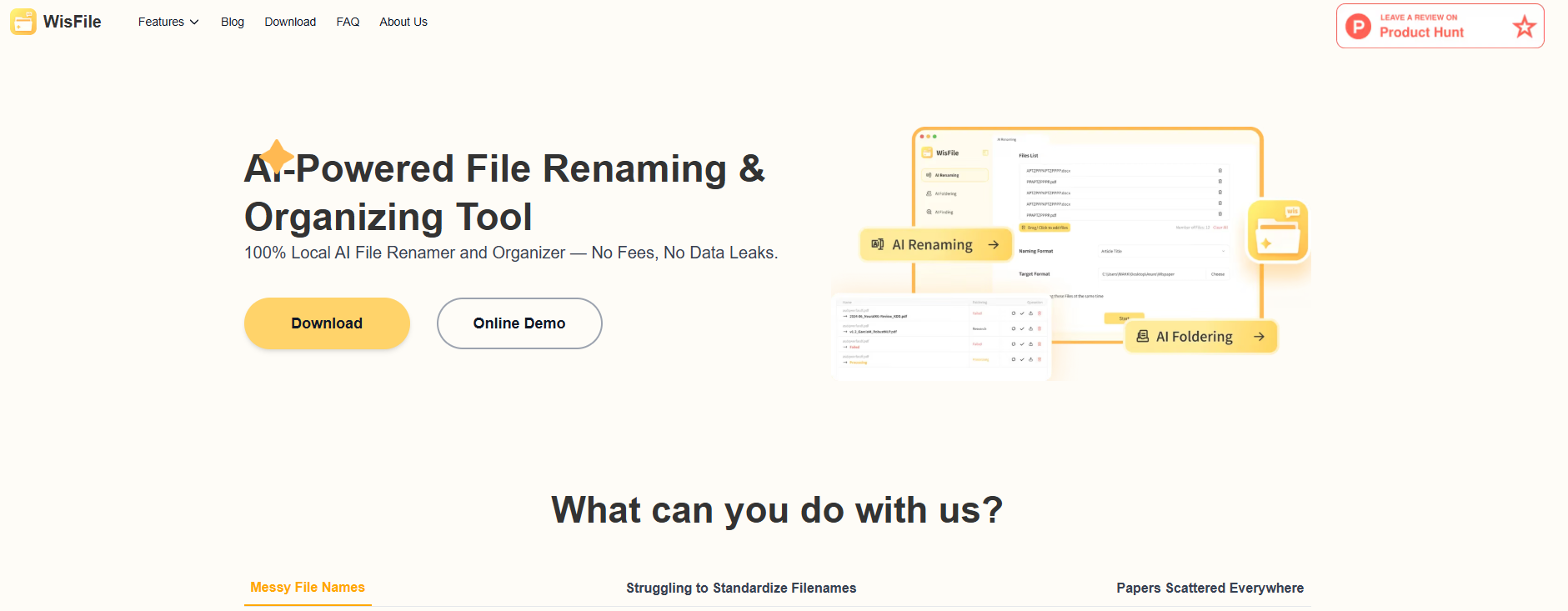
Wisfile’s main functions
- Intelligent file recognition : Wisfile can automatically scan and analyze various file formats (such as Word, PDF, etc.), accurately extract keywords from the file content, and provide a foundation for subsequent processing.
- Intelligent renaming : Based on recognized keywords, Wisfile automatically generates meaningful filenames for files, while also supporting users to select preset templates or customize naming rules to meet personalized needs.
- Batch processing : Supports importing multiple files or entire folders at once, and performing batch renaming and processing, greatly improving file management efficiency and saving manual operation time.
- Privacy protection : All AI analysis and processing are completed on local devices without internet access, ensuring that user data is not uploaded or leaked, thus protecting privacy and security.
How to use Wisfile
- Download and Installation : Visit Wisfile’s official website: https://www.wisfile.ai/, download the installation package suitable for your operating system, and complete the installation.
- Startup and initialization : After installation, launch the Wisfile application. Simple initialization settings are required upon first use.
- Import files or folders : After opening Wisfile, click the “Import Files” or “Import Folders” button and select the files or folders you want to organize.
- Enable AI Recognition : After importing the file, click the “Enable AI Recognition” button, and Wisfile will automatically scan the file content and extract keywords.
- Set naming rules : After the analysis is complete, select a preset naming template or click the “Custom naming rules” button to set the file name format according to your needs.
- Perform the renaming operation : After confirming the naming rules, click the “Start Renaming” button, and Wisfile will rename the files in batches according to the rules.
- View Results : After renaming, click the “View Files” button to check if the files have been renamed and organized as expected.
Wisfile application scenarios
- In academic research scenarios , researchers organize literature in batches, classifying papers by topic, author, or research direction for easy searching and citation.
- Office document management : Office staff can quickly organize messy folders and categorize work reports, project files, etc., by date, project name, or department to improve work efficiency.
- Personal Data Organization : Individual users can use Wisfile to organize photos, resumes, certificates, and other files, using keyword recognition and custom naming rules to make the file system more organized.
- Project document management : The project team renames and categorizes project documents in batches to ensure consistent file naming and facilitate team collaboration and file sharing.
- Download file organization : Users can organize the contents of their download folders, quickly categorize and rename different types of files (such as software installation packages, documents, images, etc.) to avoid confusion.
相关导航







ai-navhub:The official website of the AI Toolset includes hundreds of AI tools from both domestic and international sources, as well as commonly used websites, frameworks, and models for AI learning and development, helping you join the wave of artificial intelligence and complete tasks efficiently and automatically!