




AI Image ToolsAI Image ToolsLossless Enlargement
BigJPG
Free online AI image lossless upscaling tool
标签:AI Image Tools Lossless EnlargementAI image lossless upscalingWhat is BigJPG?
BigJPG is an AI image upscaling tool that uses deep learning algorithms to achieve high-quality, lossless image upscaling. It’s suitable for upscaling anime, illustrations, and other similar images, effectively reducing noise and jagged edges while maintaining image clarity and detail. Users can use it online through the official website or download the desktop or mobile app for offline operation.
BigJPG’s main functions
- Lossless Image Upscaling : BigJPG uses deep learning algorithms to upscale low-resolution images to higher resolutions, reducing blur, noise, and jagged edges. It supports various magnification levels, with the free version supporting up to 4x magnification and the paid version offering up to 16x magnification.
- Detail optimization and noise reduction : During the zoom-in process, BigJPG can optimize image details, enhance edge sharpness, reduce noise, and make the image clearer and more natural.
- Multiple image format support : BigJPG supports common image formats such as JPG and PNG, making it suitable for processing various types of images such as animation, illustrations, and photos.
- Batch processing : Users can upload multiple images simultaneously for batch enlargement processing, improving work efficiency.
- Online and Offline Use : BigJPG offers an online version, allowing users to operate directly on a webpage. Desktop applications (Windows, Mac) and mobile applications (Android, iOS) are available, supporting offline use.
- API interface support : Paid users can use the API interface for batch processing, making it convenient for developers to integrate it into other applications.
How to use BigJPG
- Online usage instructions
-
Visit the official website : Open your browser and visit the official website of BigJPG.
-
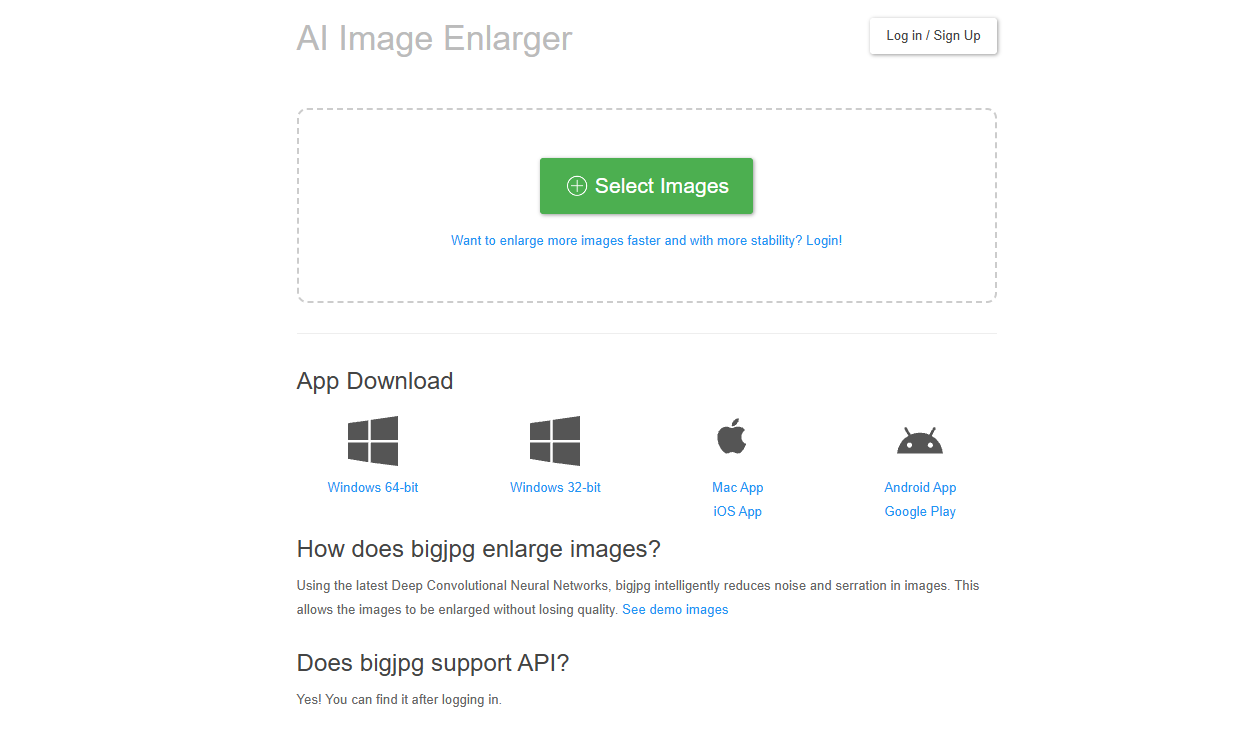
Upload image : Click the “Select Image” button on the homepage and select the image you want to enlarge from your local folder.
-
Settings : After uploading, click the “Start” button to bring up the settings panel. You can select the image type (such as cartoon/illustration, photo), magnification (the free version supports 2x or 4x, the paid version supports up to 16x), and noise reduction level.
-
Start Processing : After completing the settings, click the “OK” button, and the system will begin processing the image. Processing time depends on the image size and magnification.
-
Download result : After processing, click the “Download” button to save the enlarged image to your local device.
-
- How to use on mobile devices
-
Open your browser : Visit the BigJPG official website in your mobile browser.
-
Upload image : Click “Select image” and choose the image you want to enlarge from your phone’s photo album.
-
Settings : Select image type, magnification, and noise reduction level.
-
Start processing : Click the “Start” button and wait for processing to complete.
-
Download Image : After processing, click the “Download” button to save the image.
-
Application scenarios of BigJPG
-
Secondary creation : In secondary creation, creators can enlarge the original image and make further edits and creations without worrying about the image being blurry or distorted.
- Photography and Image Processing : For photographers, BigJPG can enlarge low-resolution photos to higher resolutions for printing large-format photos or displaying them on high-resolution screens.
- Web Design & UI Design : Web designers and UI designers need high-resolution image assets when creating web pages or application interfaces. BigJPG can help them enlarge low-resolution images to a suitable resolution.
-
Teaching materials : Teachers can enlarge low-resolution teaching images to high-resolution for use in creating teaching slides or printing teaching materials.
-
Academic research : Researchers can use BigJPG to enlarge historical photos or images in documents to better observe details.
相关导航




ai-navhub:The official website of the AI Toolset includes hundreds of AI tools from both domestic and international sources, as well as commonly used websites, frameworks, and models for AI learning and development, helping you join the wave of artificial intelligence and complete tasks efficiently and automatically!