

What is Zcode?
Z Code is an Agentic Development Environment launched by Zhipu AI. This agent-driven tool deeply understands the entire project and can flexibly utilize mainstream CLI tools such as Claude Code , Codex , and Gemini CLI to independently advance development tasks at each stage, from logic construction to visual presentation. The tool uses a graphical interface to naturalize traditional CLI tools, supporting features such as visual configuration, cross-device remote development, multi-task parallelism, and session-level version rollback. It deeply integrates with GLM-5 (programming capabilities aligned with Claude Opus 4.5) and will evolve into a multi-agent collaboration platform in the future, truly realizing the “conversation is programming” Vibe Coding experience.
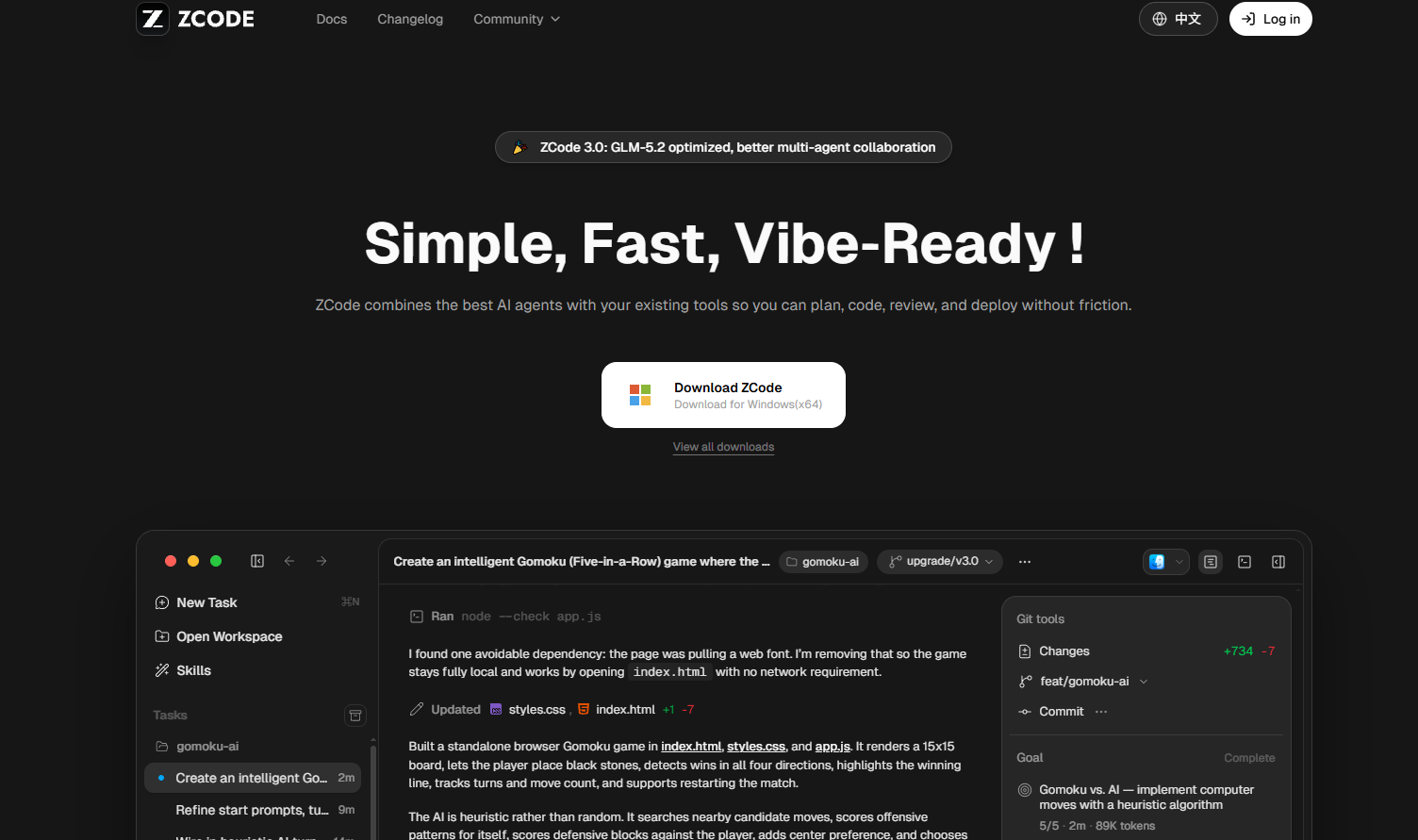
Zcode’s main functions
-
Agent-based intelligent collaboration : Led by an agent, it deeply understands the overall project and uses natural language commands to schedule mainstream CLI tools such as Claude Code / Codex / Gemini to independently complete the entire lifecycle of development tasks from logic construction to visual presentation.
- Visual configuration management : Transforms low-level operations such as API Key setting, MCP service access, and Skill installation into an intuitive graphical interface, supporting independent configuration of multiple CLI tools and flexible mapping of model environments.
- Cross-device remote development : Supports direct connection via QR code scanning on mobile devices, extending the development workflow to mobile devices through a lightweight collaborative interface, enabling a “mobile console” experience to command the Agent anytime, anywhere.
-
Agent Q&A Interaction : Users interact with the Agent using natural language, asking questions or issuing commands. The Agent will then perform programming tasks such as encoding and analysis based on the commands.
-
Permission Modes : Users can choose from four permission modes based on task requirements: Always Ask, Accept Edits, Plan Mode, and Bypass Permissions, flexibly controlling the Agent’s operational permissions.
-
Include files : Incorporate specific files into the requirements to improve the efficiency of the agent in locating and processing files, and ensure the accuracy of task execution.
-
Thinking Mode : Users can dynamically adjust the Agent’s thinking mode based on the complexity of the task, deciding whether to perform additional analysis and self-correction before responding, and optimize the working method.
-
Editing conversation history : Users can modify and re-execute any message in the conversation history, deeply adjust and optimize the Agent’s behavior, and achieve a complete reconstruction of the interaction nodes.
-
Version control : Automatically tracks all file modifications performed by the Agent, using the conversation history as a version control timeline, allowing users to locate any conversation or roll back the code to any version.
-
Command Line Panel : Provides a command line panel that allows users to directly execute commands for compiling, debugging, and deploying, enabling flexible control over the project.
-
File Manager : Provides complete visual management of files and directory structure within the project, allowing users to quickly locate and manipulate files.
-
Git commits : Provides a clean graphical user interface (GUI) for handling common Git version control operations, simplifying the code commit and management process.
-
Web browser : The built-in web browser supports real-time preview of front-end projects and interactive element selection, facilitating front-end development and debugging.
-
Security operation confirmation : When the agent attempts to perform actions with potential risks, manual confirmation from the user is required to ensure the security and reliability of the operation.
-
MCP Service : Integrates with the MCP service, providing users with a framework for agent collaboration and management protocols. Users can achieve efficient collaboration among multiple agents using the built-in MCP or custom configurations.
How to use Zcode
- Install Zcode
- For Windows systems : Visit the Zcode official website https://zcode-ai.com/, download the Windows installer and run the installer. Once completed, launch Zcode from the Start menu.
- Mac system : Visit the official website to download the Mac version DMG file, open it and drag Zcode.app to the “Applications” folder, and open it from Launchpad after installation.
- Configure AI services
- Zhipu GLM Coding Plan : Open Zcode, click “Select Model” > “manager models”, log in to your Zhipu Open Platform account, and automatically bind the API.
- Z.AI : Open Zcode, click “Select Model” > “manager models”, log in to your z.ai official website account, and the API will be automatically bound .
- Claude Code
npm install -g claude-cli: Install and log in to Claude ( and ) via the command lineclaude login. In Z Code, click “Select Model” > “manager models” and enable the Anthropic option. - OpenRouter platform : Create an API key on the OpenRouter platform. Go to Zcode, click “Select Model” > “manager models”, fill in the Base URL and API key, select the model, and save.
- Moonshot Platform : Create an API key on the Moonshot platform. Go to Zcode, click “Select Model” > “manager models”, fill in the Base URL and API key, and save.
- Other compatible services : Create an API key on the corresponding platform, go to Zcode, click “Select Model” > “manager models”, fill in the Base URL, API key and model name and save.
- Use Zcode
- Launch the application : After installation, open the Zcode application.
- Select Model : Click “Select Model” in the dialog box and select the configured AI model according to your needs.
- Start interacting : Enter a question or command in the dialog box to interact with the AI.
- Manage files and versions : Use the file manager to manage project files and the version control feature to track file modifications and rollback code.
- Use the command-line panel : Execute commands for compiling, debugging, and deploying directly in the command-line panel, providing flexible control over the project.
- Real-time preview and debugging : The built-in web browser supports real-time preview and interactive element selection for front-end projects, facilitating development and debugging.
Zcode application scenarios
-
Code writing and generation : Describe requirements in natural language and quickly generate code snippets or complete scripts to help developers start projects efficiently.
-
Code review and optimization : Zcode can check for potential problems in code in real time and provide optimization suggestions to help developers improve code quality and runtime efficiency.
-
Project planning and task management : Assist developers in sorting out project requirements, planning functional modules, and tracking task progress to ensure timely project delivery.
-
Learning and Education : Zcode provides code examples and detailed explanations to help programming beginners quickly understand language features and master new technologies.
-
Cross-platform development : Zcode supports operating systems such as Windows and Mac, and integrates with mainstream development tools, allowing developers to maintain a consistent development experience across different platforms.
相关导航